
Six years of experiments
What if your tools
could take shape?
From Python-generated controls to a workspace for code, experiments and AI. Follow the features that made Setta take shape.
Browse the feature coverage index Explore the history 2020–2026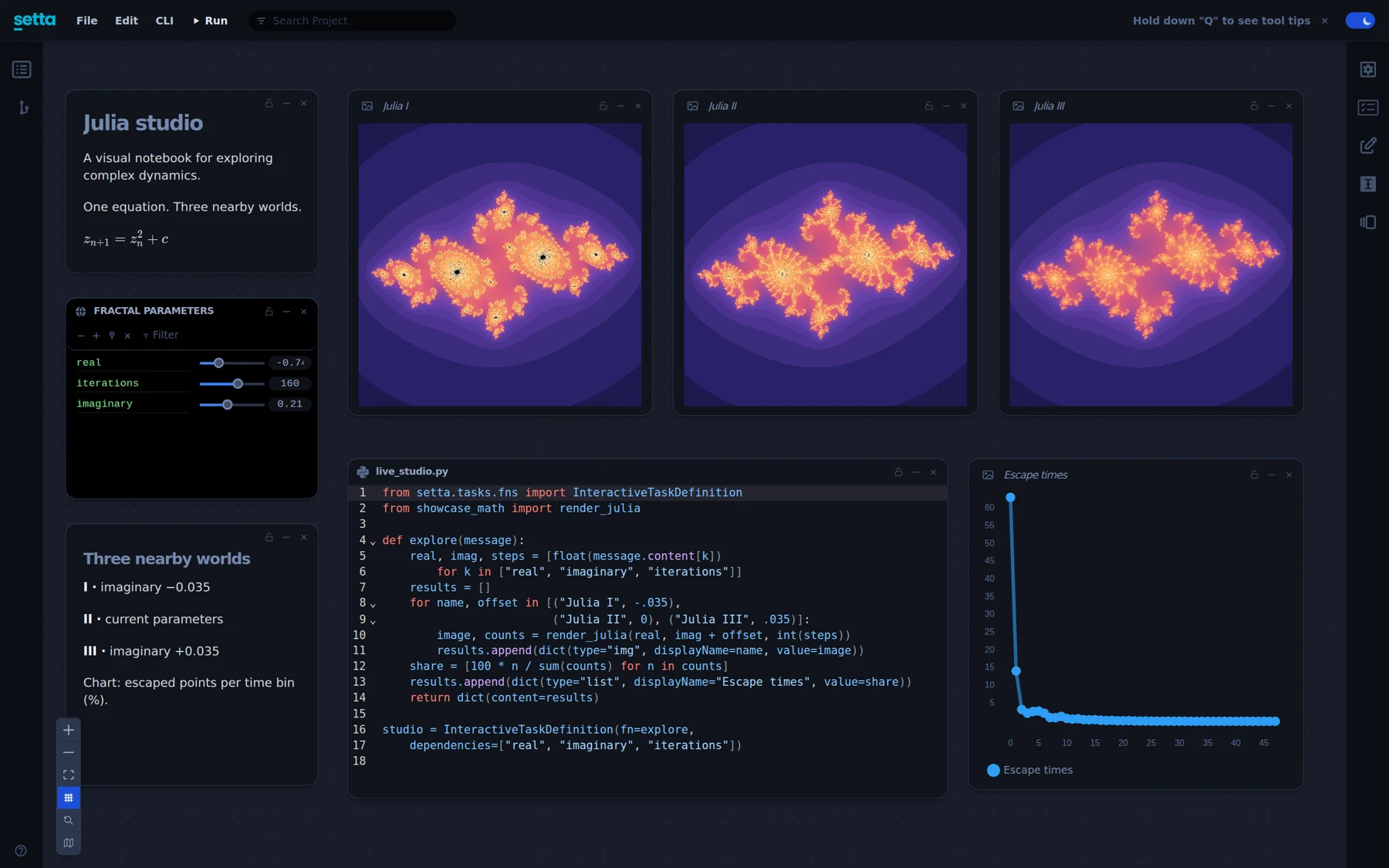
01 / 2020–2021ABCDE
Python became an interface.
Choose a function or class. Its arguments become controls. The same idea works all the way down: a model, its optimizer, a dataset and the transforms inside it.
Compose objects, then run the result.
Python signatures supplied names, defaults and types; custom mappings chose their controls. Nested lists, dictionaries and deferred factories described whole object graphs. Saved templates, reusable defaults and browser drafts kept that work available for the next experiment.
Build objects inside objects
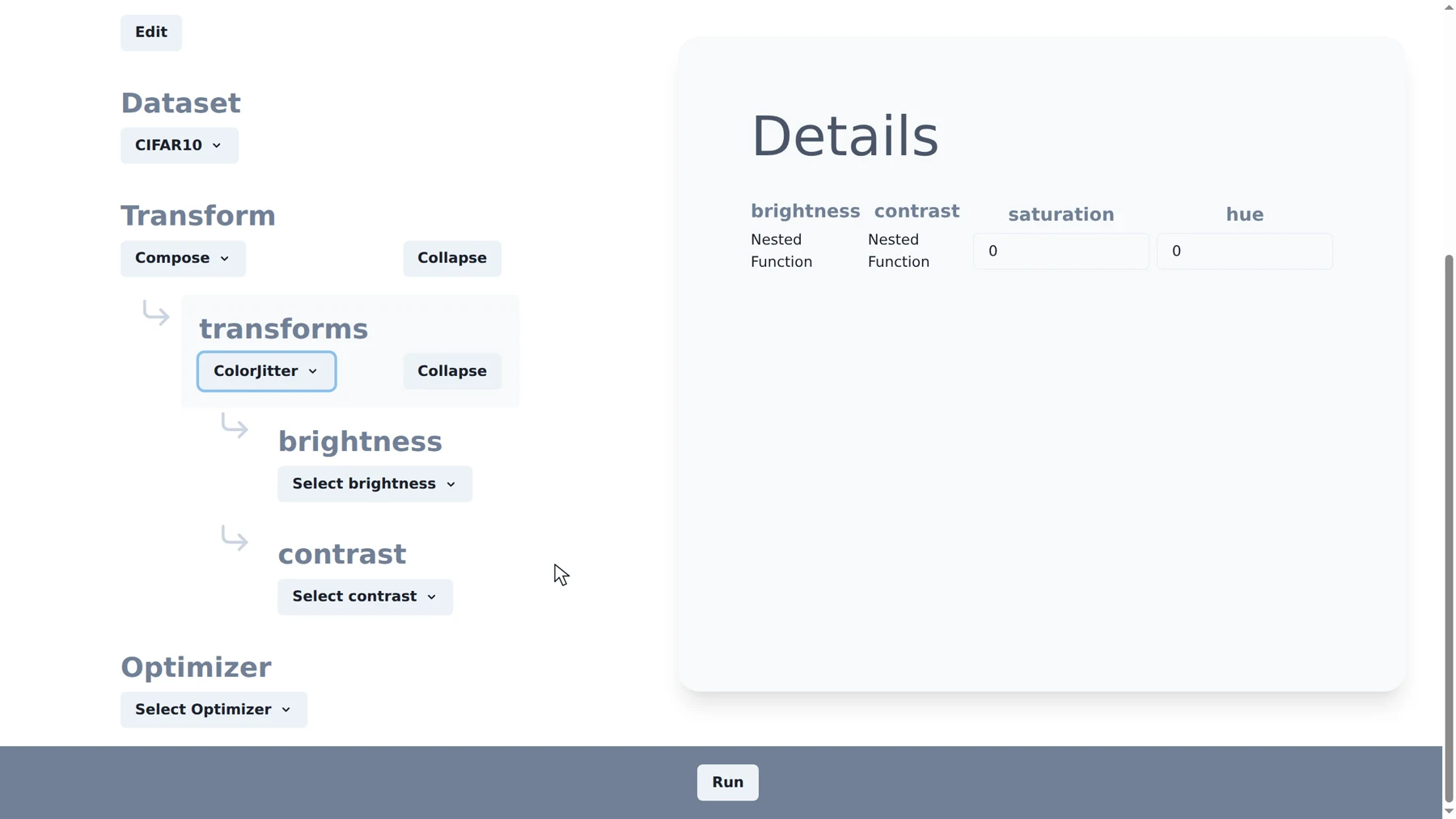
Compose a list of image transforms and edit the nested objects. References and deferred factories let one configuration describe objects that are created later, when the program runs.
Pick the function. Get the controls.
Choose resnet18 and its named arguments appear. Types, defaults and nested callables turn an ordinary Python API into an editable form.
The space around the form became an editor.
Details first edited values. Overview then made nested objects reachable, while the right-hand editor grew from YAML files into control design.
2020: choose here, edit there
Sections chooses the Python object; Details shows its arguments. The expandable sweep fields hint at experiments to come—this first sweep interface had no execution behind it.
Jump straight to a nested object
In 2021, the left Overview became a navigator: select a nested transform and the workspace pans to it. Resizable panes made room for both the object tree and the form.
2021: design the controls beside the form
Control editing moved from a gear dialog into the right UI Config pane in December. This early layout still has unfinished preset buttons; working preset saving followed in January 2022.
02 / 2022–2023ioVuu → Runcoder
Give configuration room to move.
The form opened onto a canvas. Related objects could sit together, move together, or stay connected while living in different places.
Arrange the view. Keep the relationships.
Pull an input out without breaking the link
Detach the nested transform list into its own section. The original input becomes a reference to the extracted configuration.
Navigate the whole workspace
The minimap keeps distant sections within reach. Free placement, pan and zoom let a configuration grow beyond a single form.
Collect related sections into a deck
Select the training and validation inputs and create a deck. Groups and decks let related parts of the program travel together.
Try another setup without losing your place.
In 2022, reusable control presets and section-content settings joined the right editor, then Card and Parameters replaced the old YAML tab. Project/configuration dialogs replaced Templates. In 2023, the inspector could author parameter and section descriptions, while Quick Help presented them on the left.
Take the configuration into Python
Generate the local run command for this project. The canvas describes the program; the local runtime is responsible for executing it.
Copy a section where you need it
Copy a section and paste it at the chosen point on the canvas. Nested configuration can move and be reused as a unit.
One value, several references
Follow a reference to its source, then jump to the shared defaults. Reusable values stay connected instead of becoming separate copies.
One project, many setups
Project configurations arrived in 2022. This January 2025 interface switches between saved setups: another approach is ready to try without rebuilding the project.
Delete a section. Bring it back.
Remove the Dataset sweep, then restore it with Undo. Project history also covered values, arguments, structure and presentation choices.
Find the parameter that matters
Filter the project down to matching arguments. Search keeps a large configuration usable without opening every section by hand.
The early Electron bridge and later CLI connected the browser to local Python. Saved defaults and presets reused individual controls; project configurations preserved whole setups. Moving, grouping and renaming sections kept their references intact.
03 / 2023–2024Local Runcoder → Setta
Configure. Run. Compare.
A configuration became a working experiment: launch it, watch its output, keep alternatives and understand what changed.
From one setup to a family of runs.
Watch a training run advance
A real training run advances from step 20 to step 30 while terminal logs, loss and moving-average plots update. This excerpt plays at its original speed.
Keep the important controls in view
Pin a parameter so it remains easy to reach while working elsewhere in a large configuration. Saved and frozen variants preserve the settings used for a run.
Expand one configuration into a sweep
Enter several parameter values and inspect the combinations as separate run configurations. Executable Cartesian sweeps arrived in 2024; the later RunPlan API made plans and snapshots explicit.
Group the runs, then launch them
Select a run group and start its members. Each terminal reports its own learning-rate and batch-size choices.
Run groups could vary saved versions as well as parameter values. Frozen configurations preserved a run’s inputs, while long-lived terminals kept its output available. The original sweep and run-group cards were removed in June 2025.
Move between controls, files and code.
Explore an unfamiliar Python API
Python-aware completion offers real names and signatures while you edit. Type diagnostics and Quick Info add feedback without leaving the canvas.
Edit the YAML. The controls change.
Change two values in YAML, then return to the sliders and see the same values. The text and visual forms edit one configuration.
Catch a mismatch before running
Python completions, signatures and type diagnostics help connect a callable to compatible arguments.
Keep useful documentation nearby
Open Quick Info, then promote the documentation to a persistent canvas note. Explanations stay beside the parameters they describe.
Edit the control. The file changes.
Change image_size in a JSON-backed section and save. The terminal reads the updated value from the actual file.
Rename a section. Keep its references.
A section name changes while related references update with it. Moving and grouping sections could preserve those relationships, too.
The inspector became part of the experiment.
Control presets, authored help and saved alternatives let the same Python component serve different experiments. The right pane followed the selected section; the left pane offered navigation and contextual information.
Shape each parameter’s controls
By late 2024, the Parameters pane paired widget choices with range and step settings. Here its configured fields sit beside the resulting sliders. A separate Quick Info editor authored parameter descriptions.
Versions move into their own pane
Versions began in a card-header menu in 2023. In August 2024 they moved into the right inspector. This January 2025 example previews different transform pipelines; defaults and frozen alternatives sit beside the list.
The documentation editor arrived in 2023. By 2024, separate parameter-help and version editors made the inspector much more than a list of values.
04 / 2024–2025Setta
Python, live on the canvas.
Controls stopped being only the setup for a run. They became inputs to programs that stayed alive, updated their outputs and responded to the workspace.
Change an input. See the response.
The canvas showed the result; the inspector shaped how it was assembled. From December 2024, Section Config selected chart data and axes and organized image artifacts into drawing layers. Watched files and live Python made those choices respond to new input.
SettaListener connected changing controls to running Python, while SettaChat let a program supply its own conversation behavior. Live values, saved values and button events could trigger different callbacks. Generated state and protected code regions joined visual configuration to an ordinary authored program.
Small changes. New worlds.
Three neighboring complex constants produce three Julia sets. Python callbacks connect the controls to images and an escape-time chart; mathematical notes explain the experiment.
From a sketch to an AI image
Stream Diffusion connected drawing input, model settings and generated variations. The workspace could send drawings to Python and display the resulting artifacts.
Paint the part you want to change
Paint an inpainting mask, then keep the prompt, model settings and edited image together. Layers, erasing, opacity and transforms made the drawing a useful program input.
Edit a callback while it runs
Change the schedule from linear to cosine and save. The running SettaListener reloads its callback and updates the preview. Bound files keep authored code connected to the workspace.
The same workspace, different kinds of model.
Examples brought together language-model finetuning, Transformers classification, metric learning, tabular AutoML and chat. Datasets, model choices, losses and training parameters could each have their own place.
Explore the five training and chat examples
Language-model finetuning
TRL exposed the model, dataset and training loop as related, configurable sections.
Sequence classification
Transformers training paired model and data choices with the arguments used to train them.
Learning similarity
PyTorch Metric Learning brought datasets, loss functions and training parameters into one workspace.
Automated tabular ML
SapientML paired data preparation with experiment settings.
05 / 2025–May 2026Setta workbench
The project became the workspace.
Files, agents, experiments and everyday tools came together around one project. You could arrange a view for analysis, switch to planning, or present a smaller interface to someone else.
2025: bring the program into the editor.
The inspector’s job kept changing. It configured source files and code generation, then handed authored Python back to the canvas as the editor became more capable.
Write around generated Python
In May 2025, authored prefix code lived in the right inspector; July added a suffix. December moved both into the canvas editor around a protected generated block. The whole program could now be read and edited together.
The file and the controls stay connected
A change to experiment.json appears in its controls and file-bound editor. The binding’s path and read/write direction were configured in the right Code settings pane from October 2025; JSON-source choices had moved into variants that March.
Give agents context, then connect their work.
The left pane gained project chat in March 2025 and visible MCP tool calls in April. In 2026 it became a working environment for parallel threads, agent profiles and reusable instructions. External Claude, Codex and OpenCode integrations could work on project files. Canvas chat access links and workflow execution links had separate meanings.
January 2026’s AI Settings combined system prompts, engines, allowed tools and memory scopes into profiles. Skills/MCP moved from App configuration into chat in February; March added skill Markdown editing and reusable slash commands, then gathered those tools and AI Settings beside the conversation.
Try another direction in a conversation
Revise the question from a short experiment to a longer training run, then switch between the resulting branches. Earlier answers remain available.
Two reviews, one completed workflow
Start two independent reviews of an experiment. An AND gate waits for both model responses before the workflow finishes. Read the recommendations and the missing validation evidence together.
Ask for a configurable training script
Ask for a configurable PyTorch trainer. The agent writes the file and checks its command-line interface; Setta turns the typed function into controls. Review the result, then adjust the configuration.
Give the assistant the evidence
Connect measured results to a chat, then ask which experiment to run next. The assistant reads the linked note, identifies the tied best training losses and recommends testing on unseen data. The request does not repeat the measurements.
In March 2026, selecting a workflow edge opened an inspector for its trigger, conditions, prompt, thread strategy and permissions. Custom Runs supplied start, stop and reset. Workflow control included OR/XOR gates, failure and signal routes, reusable Prompt sections and bounded loops. Peer links could delegate bounded work between chats. Follow AI navigated to the assistant’s current edits; queued drafts and partial histories kept conversations recoverable.
Run the experiment. Inspect the work.
Custom Runs and backend logs joined the left pane in December 2025. Files and Watch Code followed in January 2026, then Git and Plugins in February. These tools worked on the whole project while the canvas kept its code, controls and results together.
Custom Runs named one-shot or continuous commands, added entries from code blocks and controlled generation targets and snapshots. Notifications and searchable backend logs kept activity visible. RunPlan below was a separate API for detached experiments.
Track the work as it progresses
Move work through a task board and update its progress. The project can hold planning, execution and results in the same workspace.
Six runs from one plan
Launch three learning rates × two seeds. Each run gets its own snapshot and log; the live project keeps its original parameters. RunPlan also supported zips, seeded randomness, repetition, variants, tags and cancellation.
23 seconds · Read the walkthroughStay close to the evidence
Six convergence curves sit beside their CSV, Python and files. A logarithmic loss axis makes their shared floor visible.
Python definitions become controls
The trainer’s typed Python function supplies epochs, batch size, learning rate and seed. Change a control and inspect the generated invocation beside the source. Watch Code keeps source definitions and their configuration in step.
Browse a project’s files
January 2026 brought a real file tree; February added spreadsheet authoring. Open Python source, then preview a results CSV here. The Files editor also supported cell changes, new rows and columns, and saving back to CSV or Excel files.
Inspect changes and their history
Select a changed file to read its diff, then open the commit graph. The Git pane also lists worktrees and their branch and HEAD information.
Add a tool through a plugin
From February 2026, extensions could add tools to the left rail. Install a plugin and open its confusion-matrix pane. Plugins could also contribute sections, settings, commands and backend capabilities.
Spreadsheets, dates and saved secrets
Filter results in place
Filter a CSV to the runs with a learning rate of 0.05. Spreadsheet sections brought CSV/XLSX editing, sorting and filtering into the project.
Choose a date directly
Move to the next month and pick a day. Date and time controls carried structured values with configurable display formats.
Save a secret outside the project
Commit a password to the runtime credential store, then reveal it on request. The value stays outside normal project state.
SSH workspaces supplied remote roots, connection status and tunnels. Dictation offered speech input alongside attachments. During the Go backend transition, Python execution and the Python SDK remained separate runtime services. These services belonged to the workbench, outside today’s browser library.
Choose the interface someone needs.
The left pane’s Developer/User modes became named views in December 2025. February 2026 added independent layouts and an App editor for a focused interface. In March, chat and Git tools could leave the sidebar for saved floating-window arrangements.
Turn the project into an app
App mode presents a focused interface for the project. Layout containers, theme settings and responsive rules shape the controls a recipient needs.
Share a project snapshot
Bring a working arrangement back
Restore the saved “Evidence and decisions” Window Space. The loss curves and research notes return side by side, with their positions and sizes intact.
Give the program a front panel
A slider, rotary knob, dropdown and switch change the schedule. A button exports its CSV: controls can carry values or trigger actions.
One project, different working views
Switch from Review to Train and back. Each named view remembers its camera, visible sections and layout while sharing the same project.
A separate 2025 hosting companion explored Fly.io project deployments, startup and status. The later workbench shared frozen project snapshots with per-session interaction. Setta 3 separately explored private cloud runtimes and a remote web client.
May 2026: the form leaves the canvas.
On May 30, a Setta 2 layout experiment changed the balance again. Callable and Dict sections became compact nodes. Their full editable forms moved into Contents on the right, leaving the canvas to show the program’s structure and connections.
Select a node. Work on its contents.
Switch between Dataset and Training, then change the training duration from 12 to 24 epochs. The form and generated Python update while the connected nodes stay visible.
Choose which values connect
Port authoring had arrived in January 2026: choose input parameters and expose outputs with Python accessors. Here, Dataset’s size supplies Training’s sample count. The inspector defines the ports; the canvas shows their relationship.
This was a late workbench experiment. Setta 3 explored a separate application, and the later library built new Outline and Inspector components with their own behavior.
06 / Summer 2026Setta 3 & Setta 4
Other ways to work with agents.
Two separate applications explored a different center of gravity: a moving workspace of agent panes, then a command center organized around durable workstreams.
Panes, workstreams and evidence.
Setta 3 explored queued and steerable work, durable topic threads and forks, runtime pairing, a scriptable CLI and voice input. Setta 4 followed workstreams and their evidence: recorded events, declarations and attributed interpretations stayed distinct. The report below is its built-in artifact example.
Give a result a useful shape
Setta 4’s built-in report combines summary numbers, a table and a chart into one structured artifact.
Setta 3: a scrolling workspace
Chat, terminals, Git and browser panes share a scrolling strip. Resize, focus or use the overview; threads, queues, remote access and voice extend the workspace beyond a single conversation.
Connect the evidence
An authored research map connects a goal, measured results, a decision and the next experiment. Move a node while its typed relationships remain visible. Each summary can point back to its source evidence.
Draw and validate a workflow
Arrange actions, connect their steps and validate a draft. The separate workflow system also supported run history, cancellation and recovery.
Explore the focused request interface
A focused request
Easy Button places the request and the work in progress on one surface.
07 / August–November 2026@riteofstring/setta
The workspace became a toolkit.
The current React library carries the workspace interactions into other applications. It grew from the earlier workbench: an app supplies its own data, algorithms and meaning, then chooses the pieces it needs.
Reusable pieces with room for your application.
The host owns data, computation and persistence. Setta supplies typed controls, nested groups, editors, help and diagnostics, searchable commands, managed windows and structural undo. Keyboard access, touch targets, right-to-left layouts, light and dark themes, and reduced motion belong to the reusable surfaces.
Reach a command from the keyboard
Open the command palette and search for an action. Commands, Find, Outline and Inspector give large workspaces several ways to navigate.
Change the room. Recompute its acoustics.
Change the instrument’s room width and inspect the recomputed geometry and impulse response. Browser workers handle the calculations while the controls stay responsive.
Arrange it, undo it, lay it out again
Move a group, reverse a structural change and let automatic layout organize the canvas. Hierarchy, subtree copying and optional structural history work together.
A control for each kind of input
Sliders, knobs, switches, dropdowns, colors, dates and dropzones share one workspace. Typed parameters, nested sections and code or Markdown editors supply the building blocks.
Find it. Select it. Change it.
Connections with your own meaning
Connect ports and move sections while cables find their route. The application defines what an edge means; Setta handles connection rules and interaction.
Move between views and windows
Open content in a managed window and switch the working view. Saved layouts, docking and Window Spaces let one document support different tasks.
The control tree supported filtering, reparenting, validation and custom widgets. Clipboard and history could be delegated to a host; structural undo did not cover ordinary values, editor text or opaque content. The independent browser pipeline supported staged work, progress, timeouts and cancellation, kept the last successful output, and coalesced pending input to the newest value.
Build a program. Watch it respond.
Python Canvas composed callable Python into executable programs. Realtime connected drawing and controls to a running pipeline. Both kept the program and its result in the same workspace. Their CLI and API surfaces exposed schemas, snapshots and revision-aware changes.
Fit a more expressive model
Change the polynomial degree, run the generated Python and compare the learned decision boundary. The controls describe real Python components; the generated block stays inside an authored, executable file.
Draw once. Render twice.
Move a shape in the drawing. Two Python treatments update independently, then join into a poster from the same input. Open the recipe, edit the footer position and apply the change to the running program.
Realtime tracked input lineage and code revisions so stale results could not replace newer work. It retained useful output during recomputation and supported cooperative cancellation. Its Fabric drawing editor included layers, typography, transforms and history.
Small applications, complete tasks.
Compare candidates, investigate observations and record a decision with its evidence.
Bench: compare candidates fairly
Run Contain and Cover on the same frozen set of ten catalog images, compare the twenty outputs and save a preferred result with a reason. Bench kept run history, artifacts and cancellation with the comparison.
38 seconds · Read the walkthroughExperiment Lens: follow the same observation
Filter a simulated battery study across linked charts and tables. Compare trajectories, annotate an image and export the selected evidence. Lens opened existing results; its linked views also included histograms, heatmaps and parallel coordinates.
49 seconds · Read the walkthroughReview: make a decision you can trace
Inspect a claim against its Git evidence, then mark a poster’s subtitle and request better contrast. Feedback stays attached to the exact artifact. Review stored decisions and preserved drafts during save failures; it did not run the producer’s tests or agents.
30 seconds · Read the walkthroughThese were applications built around the workspace. The current package supplies the reusable UI and browser tools; Python execution, experiment scheduling and review storage belonged to their respective apps.
One toolkit, very different tools.
The same controls and workspace can surround an artwork, a spatial capture or a musical instrument. Each application supplies its renderer and processing.
Print studio
Draw, adjust a treatment and export the artwork.
Photo to particles
Adjust a particle scene built around image depth.
Spatial capture
Inspect a Gaussian capture with scene and export controls. Houseplant: Marcel Padilla, CC BY 4.0.
Single-image 3D
Inspect a selected object, its cutout and a predicted 3D form.
3D sketchbook
Linked controls drive Disperse, Vortex and Ripple.
An instrument you can play
Connect sound modules over a moving landscape. Play the instrument.
Still taking shape
Your data. Your code.
Your kind of tool.
Today, Setta is an open-source TypeScript/React toolkit.
The
next application is yours to build.