Welcome to Setta
These docs are a work in progress.
Getting started
Activate your Python environment, and run:
pip install setta
Let's say you've created a new, empty git repo in a folder called my_project.
Move into that folder and run:
setta
The Setta UI will now be available in your web browser at http://127.0.0.1:8000/.
You'll also notice that Setta has created a few files. Here's what the structure of your my_project folder will look like:
my_project/
├── setta_files/
│   ├── setta.db
│   ├── setta-settings.json
│   ├── setta-meta-settings.json
│   └── code/
│       └── temp_folder/
Create and run your first Setta project
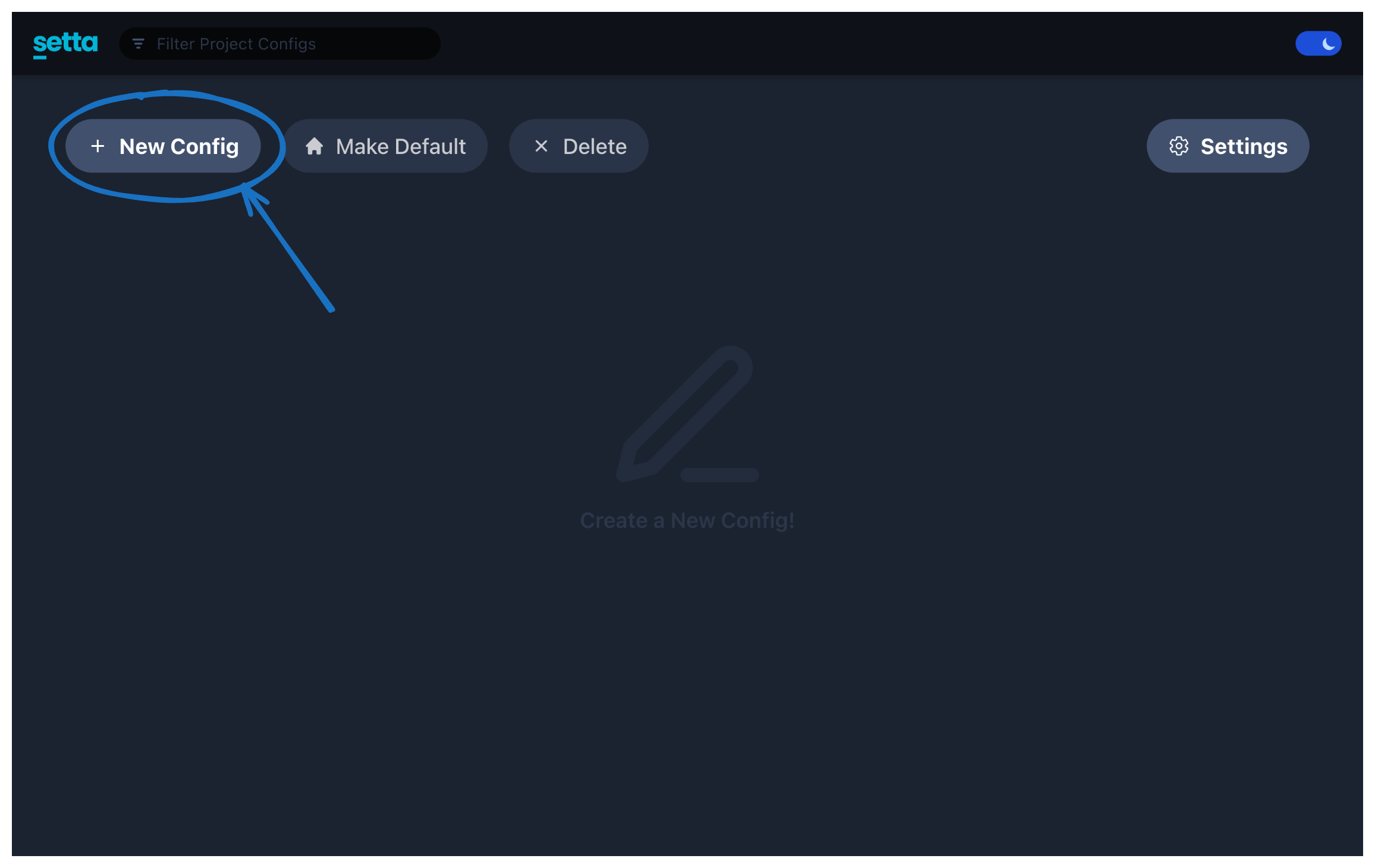
On the home page click New Config. This will load a brand new, empty project.
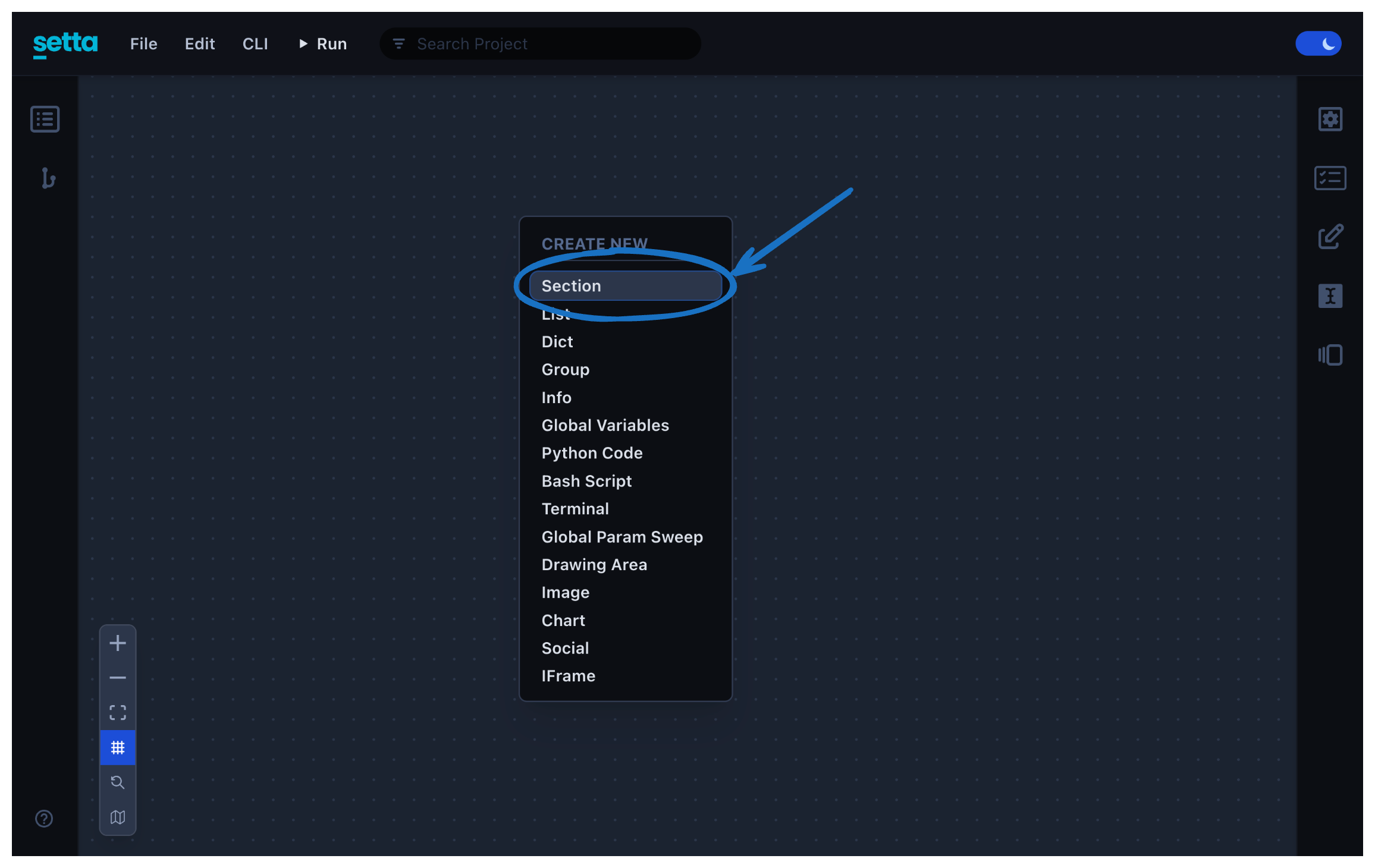
Right click to open the context menu, and click Section to create your first section.
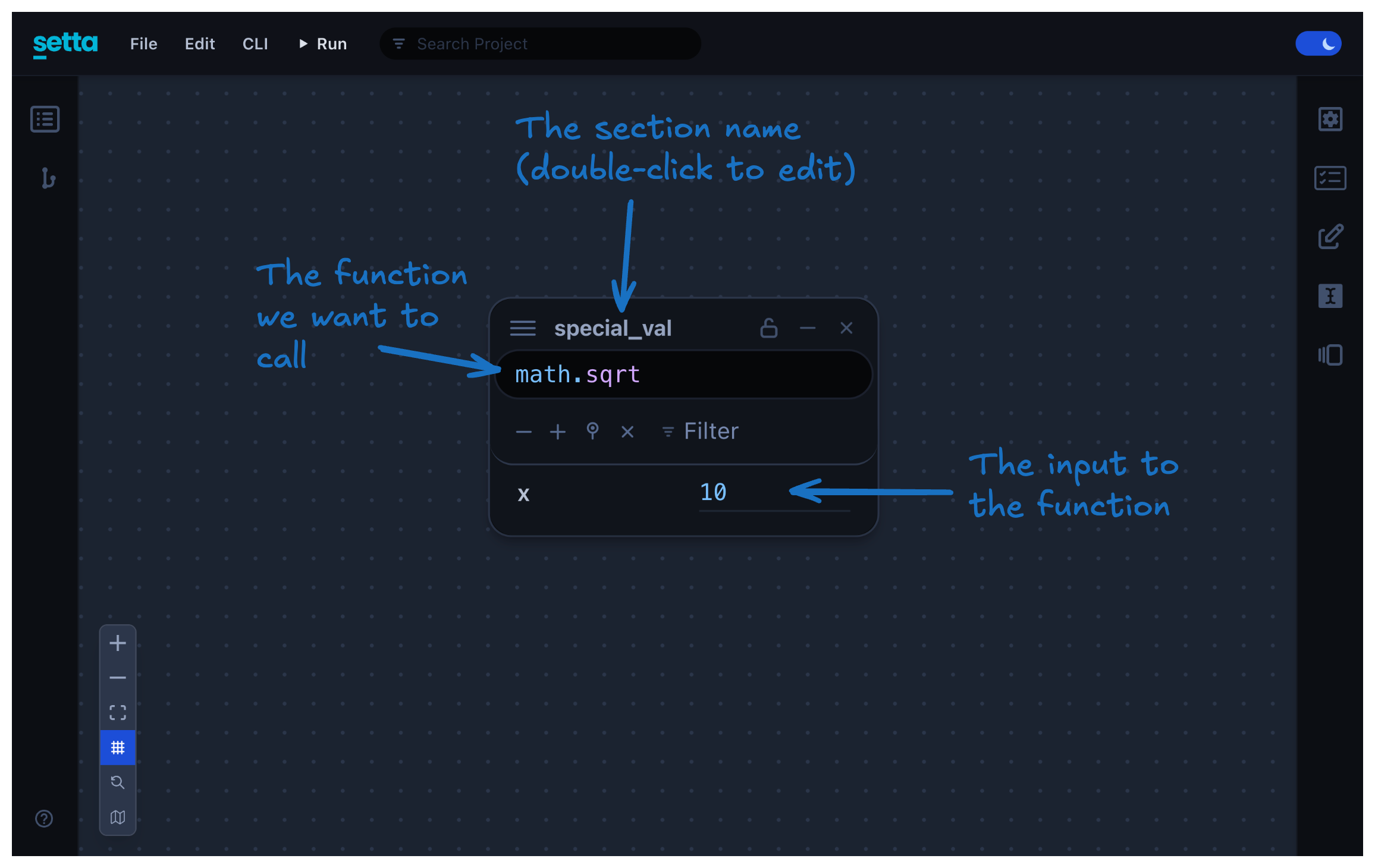
Double click on the section name, and rename it to special_val. Type math.sqrt in the callable field, and press the tab key. An x parameter should appear in the parameters area. Enter 10 in the text field next to x.
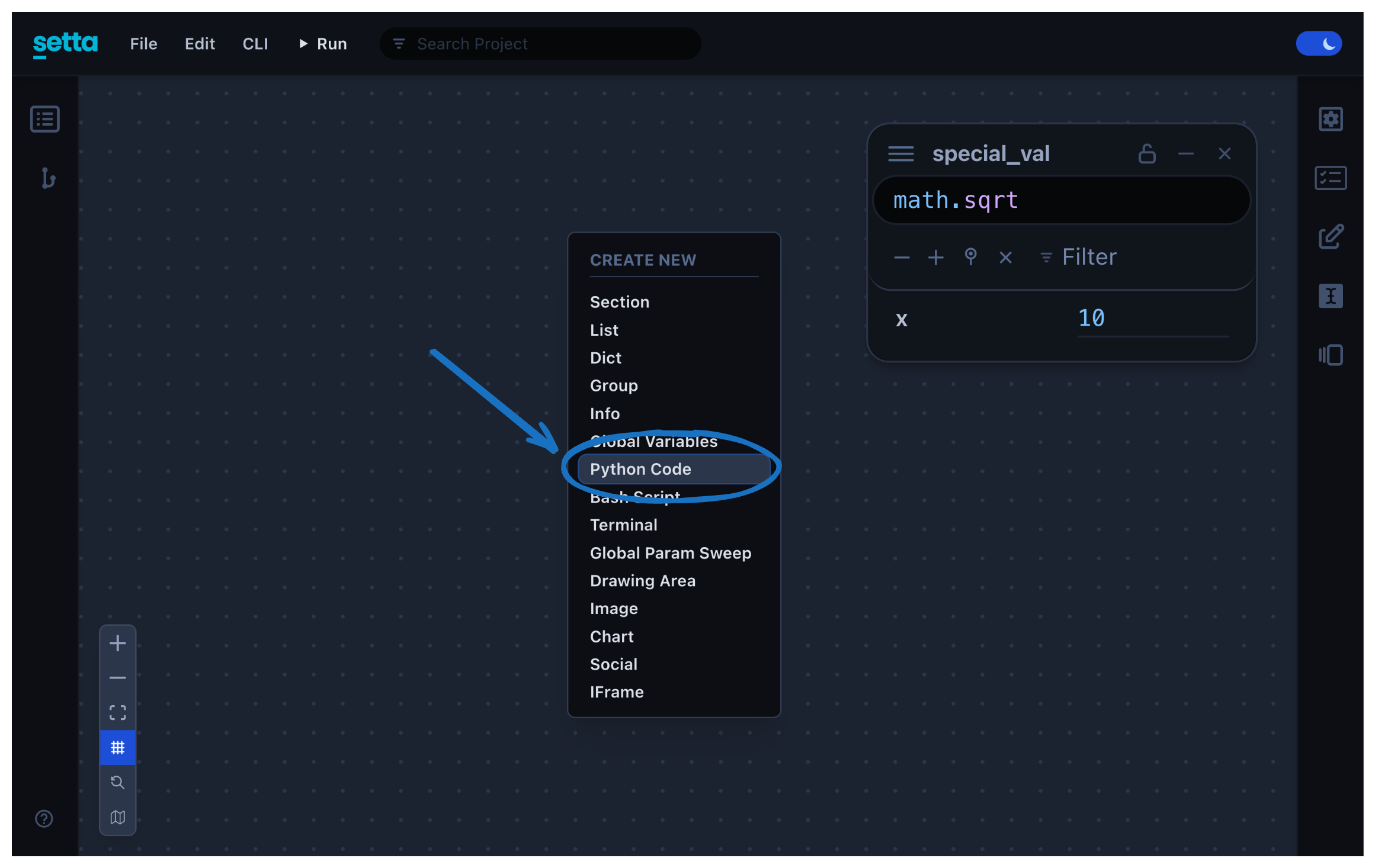
Right click to open the context menu, and click Python Code to create a code block.
Paste the following into this code block:
$SETTA_GENERATED_PYTHON

print(special_val)
Click Run in the nav bar. A terminal will appear and it should print 3.1622776601683795.
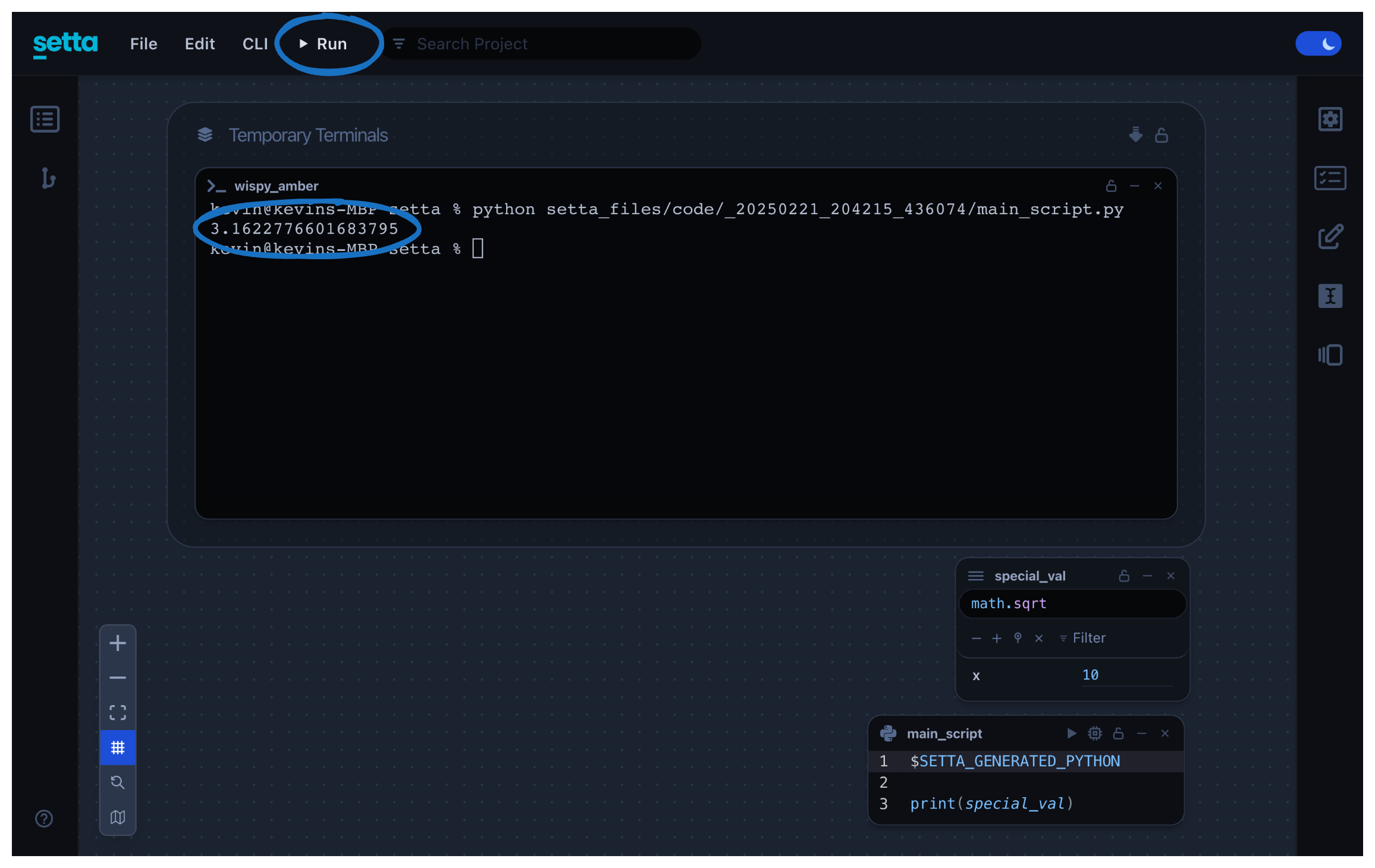
Congratulations! You've successfully run your first Setta project!
What happens under the hood
When you click the Run button, Setta replaces $SETTA_GENERATED_PYTHON with:
import math

x = 10
special_val = math.sqrt(x)
Notice how it:
- Imports the Python
mathlibrary. - Converts your
special_valsection into a variable, equal tomath.sqrt(10).